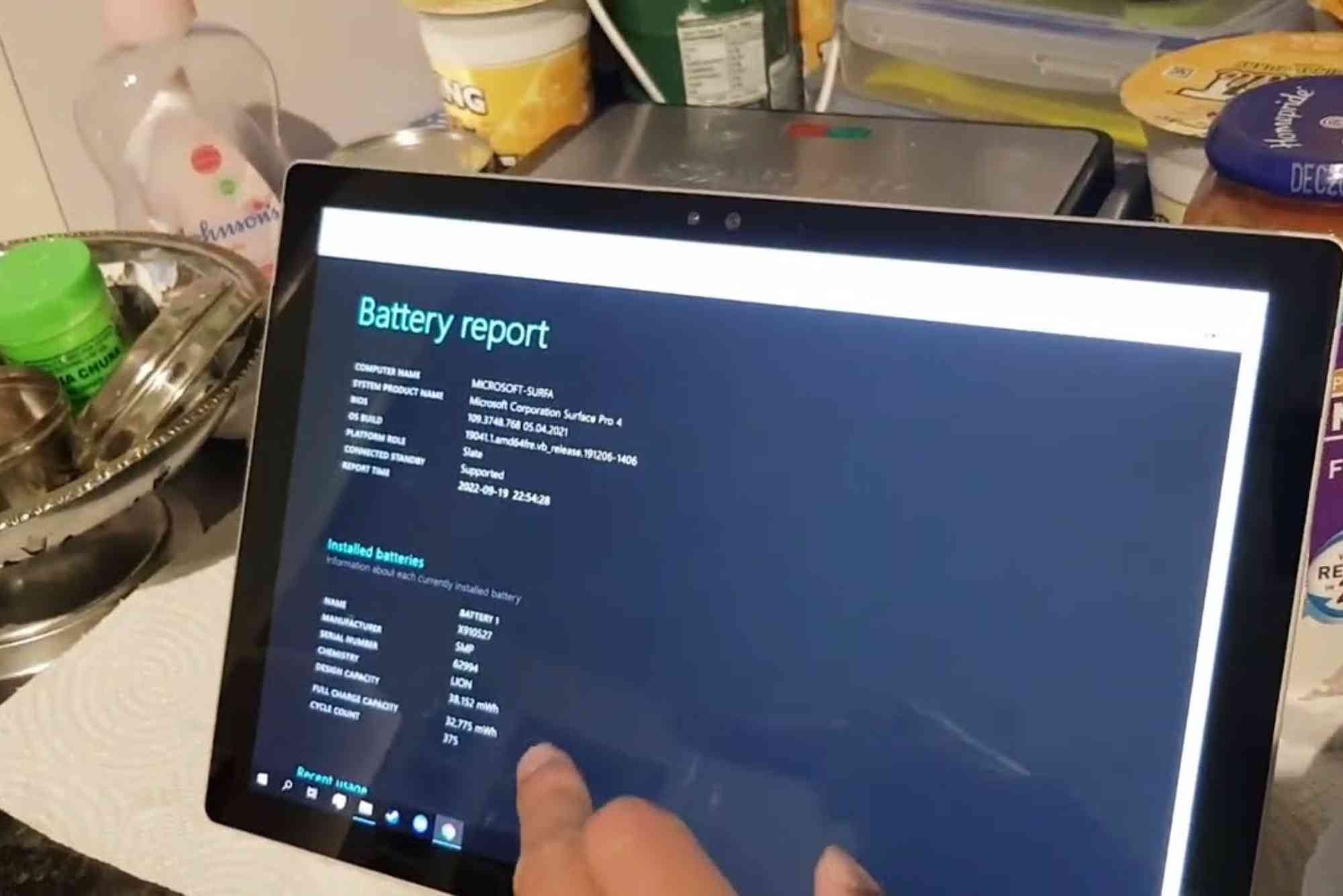
How to Check Surface Device Battery Health
Surface devices by Microsoft are known for their sleek design and portability. However, battery performance tends to decline over time. To keep your device running efficiently, it’s essential to monitor its battery condition. In this detailed guide, you’ll learn how to check Surface battery health using built-in tools and methods that require no technical background.
Understanding the state of your battery helps you avoid sudden shutdowns, poor performance, and long-term damage. Whether you’re using a Surface Pro, Surface Laptop, or Surface Book, this guide applies to all Surface models.
Why Battery Health Matters on Surface Devices
Battery health doesn’t just determine how long your Surface lasts on a single charge — it also impacts performance and longevity. If your battery degrades beyond a certain level, your device may throttle its power to conserve energy.
A well-maintained battery ensures:
- Consistent performance
- Accurate battery life estimates
- Longer hardware lifespan
This is why it’s crucial to check Surface battery health regularly, especially if you rely on your device for work or school.
How to Check Surface Battery Health Using Windows Tools
Windows includes a built-in feature that generates a battery report. This report shows detailed statistics about your Surface’s battery capacity, charging history, and more.

Generate a Battery Report Using Command Prompt
- Open the Start Menu and search for Command Prompt.
- Right-click and choose Run as administrator.
- Type the following command:
powercfg /batteryreport - Press Enter.
This will save a battery report as an HTML file in your user directory (usually C:\Users\YourName).
Open and Analyze the Report
- Navigate to your user folder.
- Double-click battery-report.html to open it in a web browser.
Look for the following key sections:
- Design Capacity vs Full Charge Capacity:
This shows how much your battery could hold originally vs now. A large gap indicates wear. - Battery Life Estimates:
This section compares how long the battery lasted when new versus now. - Cycle Count:
Indicates how many full charge/discharge cycles the battery has gone through.
These data points are vital for evaluating your Surface’s battery health. If your full charge capacity is less than 70% of the design capacity, it’s time to consider battery replacement.
Using Surface App to Check Battery Health
Microsoft’s Surface App offers another way to check the device’s battery stats.
How to Access Battery Info Through the Surface App
- Download the Surface App from the Microsoft Store if not pre-installed.
- Launch the app and go to the Device Information tab.
- Under Battery, you’ll see health stats like capacity and status.
While it may not be as detailed as the HTML battery report, it gives a quick overview without needing command-line knowledge.
Third-Party Tools to Monitor Surface Battery Health
If you’re looking for more advanced metrics or real-time monitoring, third-party tools can help.
Popular Options Include:
- BatteryInfoView (by NirSoft): Displays charge/discharge rates, capacity, and wear levels.
- HWMonitor: Offers real-time voltage and temperature data for advanced users.
Make sure to download these tools from reputable sources. These apps often give more dynamic readings compared to Windows’ static reports.
How Often Should You Check Your Surface Battery Health?
For general users, checking every 3–6 months is enough. If your Surface is showing signs of battery issues like fast drainage or random shutdowns, run a battery report immediately.
Heavy users — such as gamers, video editors, or software developers — should check monthly to stay ahead of potential issues.
Best Practices to Maintain Good Battery Health
Monitoring is only half the battle. Here are some real, practical tips to extend your Surface battery’s lifespan:
Avoid Constant Full Charges and Discharges
Lithium-ion batteries last longer when you keep them between 20–80% charged. Avoid letting the battery drop to 0% or stay at 100% for long periods.
Use Battery Saver Mode
Windows’ built-in Battery Saver adjusts background activity and screen brightness to conserve power. It’s handy during long workdays or travel.
Keep Your Surface Cool
Overheating is one of the leading causes of battery degradation. Use your Surface on hard, flat surfaces and avoid soft materials like blankets or cushions.
Update Firmware Regularly
Microsoft releases firmware updates that often include battery optimizations. Check Windows Update regularly to ensure you’re not missing performance tweaks.
Turn Off Background Apps
Use Task Manager to close apps that are unnecessarily running in the background and draining your battery.
Signs Your Surface Battery Needs Replacement
Even with the best care, all batteries degrade. Here are signs it might be time for a replacement:
- Battery drains quickly even after a full charge
- Surface shuts down suddenly without warning
- Full charge capacity is below 50% of the design
- Cycle count is well over 500
If your Surface is under warranty, reach out to Microsoft Support for battery service. Otherwise, certified technicians or authorized service providers can help.
Internal Tip for Surface Users in the UAE
If you live in the UAE and are looking for device repair or battery replacement, Barakat Aldar Repairing offers professional Surface diagnostics and battery replacement with genuine parts.
FAQs About Surface Battery Health
How do I know if my Surface battery is healthy?
You can generate a battery report using powercfg /batteryreport in Command Prompt. Look at the “Full Charge Capacity” compared to the “Design Capacity”. A drop of more than 20–30% suggests aging.
Does Surface have a battery health check feature like Macs?
While not as user-friendly as macOS, Windows provides a detailed battery report. The Surface App also gives quick battery info, though less detailed.
What is a good battery cycle count for a Surface?
Surface batteries are rated for around 300–500 charge cycles. After that, performance and capacity typically begin to decline.
Is it okay to leave Surface plugged in all the time?
Occasional full charges are fine, but keeping your Surface plugged in 24/7 may cause battery swelling over time. Try to unplug occasionally to preserve health.
Can I replace a Surface battery myself?
Technically, yes — but it’s not recommended. Surface devices are not designed for DIY repairs. You risk damaging internal components or voiding your warranty.
Stay Ahead by Checking Battery Health
Your Surface device is a long-term investment, and its battery health plays a major role in daily performance. By learning how to check Surface battery health, you not only extend your device’s lifespan but also ensure smoother user experience.
Whether you’re using built-in Windows tools, the Surface App, or trusted third-party programs, regularly monitoring your battery can save you from future frustration.
Stay proactive — run a battery report today and optimize your device for tomorrow.
Have questions or need help analyzing your Surface battery report? Drop your query in the comments or visit your nearest Microsoft service center for professional support.