How to Configure Avigilon Camera with Tool Software
Setting up an Avigilon camera correctly is crucial for security and monitoring efficiency. The Avigilon camera configuration tool software download simplifies the process, offering users a robust, intuitive interface to configure IP cameras quickly. Whether you are an IT professional or a beginner in surveillance systems, this guide will walk you through the entire configuration process from software download to camera setup.
Understanding the Avigilon Camera Configuration Tool
The Avigilon camera configuration tool software is a proprietary utility designed to detect, configure, and manage Avigilon IP cameras on a network. It allows users to set IP addresses, update firmware, adjust image settings, and perform diagnostics with ease. This tool is essential for installers, especially in large deployments where multiple cameras are being configured simultaneously.
Step-by-Step Guide to Configuring Avigilon Cameras
Downloading the Avigilon Configuration Tool Software
Before you begin, ensure you download the latest version of the Avigilon Camera Configuration Tool Software Download from Avigilon’s official website. Using the latest version ensures compatibility with recent firmware and better performance.
Visit the Avigilon Support Portal and search for “Camera Configuration Tool.” After downloading, install the tool on a Windows-based computer, as it’s not currently compatible with macOS.
Launching the Software and Detecting Cameras
Once installed, launch the software and connect your Avigilon camera to the same network as your computer. The tool will automatically scan your local network for Avigilon devices. This feature is extremely helpful in large networks where manually identifying IP addresses is time-consuming.
If the software doesn’t detect your camera, check your firewall settings, ensure the camera is powered, and confirm network connectivity using a basic ping test.

Assigning IP Addresses
For most installations, assigning static IP addresses to each camera is recommended. It provides better control and stability, especially when integrating with a larger video management system (VMS).
Use the configuration tool to change from DHCP (default) to Static and enter an IP address that aligns with your network structure.
Setting Up Camera Credentials
The Avigilon configuration tool also allows you to set or update the username and password for each camera. Strong credentials protect the camera feed from unauthorized access. Create a secure password that includes upper and lower-case letters, numbers, and symbols.
Adjusting Image and Video Settings
The tool provides control over various image settings such as resolution, exposure, focus, and white balance. You can view the live feed and make real-time adjustments to optimize image quality for different lighting environments.
If you are using an Avigilon H4 or H5 camera, the tool also includes advanced features like wide dynamic range (WDR), motion detection zones, and IR illumination settings.
Firmware Updates via Configuration Tool
Keeping your camera firmware updated is essential for security and performance. The configuration tool checks for firmware versions and allows you to upload new firmware files directly.
Before updating, always back up the current settings. During the update, do not interrupt the power supply or close the software. Most firmware updates complete within 5–10 minutes.
Integrating with Avigilon Control Center (ACC)
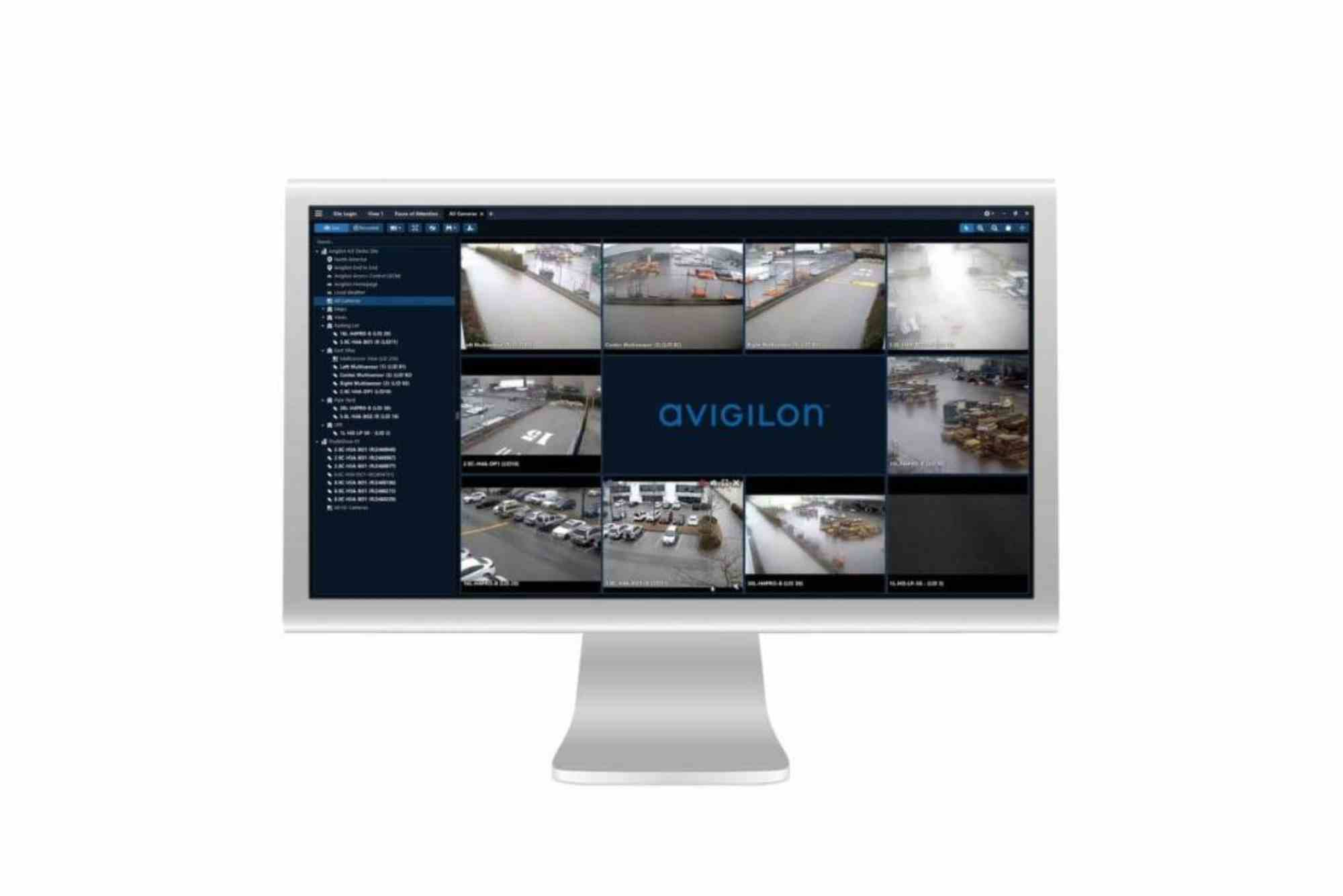
Once configuration is complete, integrate the camera into the Avigilon Control Center (ACC) software. The configuration tool doesn’t replace ACC—it complements it. After configuration, launch ACC and add the camera using the assigned IP address. The camera should connect seamlessly if the credentials and network settings were correctly configured.
Common Configuration Challenges and Fixes
Camera Not Detected on Network
This issue usually stems from network segmentation or firewall restrictions. Ensure your computer and camera are on the same subnet, and disable any firewall or antivirus temporarily during setup.
Password Reset Required
If the camera was previously installed and the password is unknown, perform a hardware reset following Avigilon’s official documentation. Most models have a reset button near the power connector.
Firmware Update Fails
Ensure the firmware file matches the camera model. Mismatched firmware can cause the camera to stop functioning. Also, verify that your PC maintains a stable connection throughout the process.
Tips for Optimizing Avigilon Camera Performance
Keep firmware up to date
Use high-quality Ethernet cables
Avoid using wireless networks for outdoor cameras
Enable smart analytics like motion detection only where needed
Regularly audit camera feeds for image clarity and angle positioning
Why Use the Avigilon Configuration Tool?
This tool drastically reduces the setup time and minimizes the chance of human error. Instead of using web browsers for every camera, you get a centralized dashboard to manage all devices. For IT admins and integrators, it’s an essential part of the toolkit.
Moreover, it aligns well with Avigilon’s overall ecosystem, providing seamless integration with their software and analytics. You also gain access to Avigilon’s support resources, including technical bulletins, documentation, and live support.
FAQs
How do I download the Avigilon camera configuration tool software?
Visit Avigilon’s official support site, search for “Camera Configuration Tool,” and choose the latest version that matches your operating system.
Why is my Avigilon camera not showing in the configuration tool?
Ensure your PC and camera are on the same subnet. Disable any firewalls or VPNs temporarily and check physical connections.
Can I reset an Avigilon camera password using the tool?
No. If you forgot the password, you’ll need to physically reset the camera using its hardware reset button.
Is the Avigilon configuration tool available for Mac?
Currently, the configuration tool is only compatible with Windows operating systems.
Can I configure multiple Avigilon cameras at once?
Yes. The configuration tool supports batch configuration, allowing you to manage multiple devices simultaneously.
Do I still need ACC if I use the configuration tool?
Yes. ACC is needed for full video management, recording, playback, and analytics. The configuration tool is only for setup and basic camera management.
What’s the default IP address of an Avigilon camera?
Most Avigilon cameras are set to DHCP by default. If no DHCP server is present, it may default to 192.168.1.168 or a similar IP. Check the camera’s documentation for your model.