Introduction
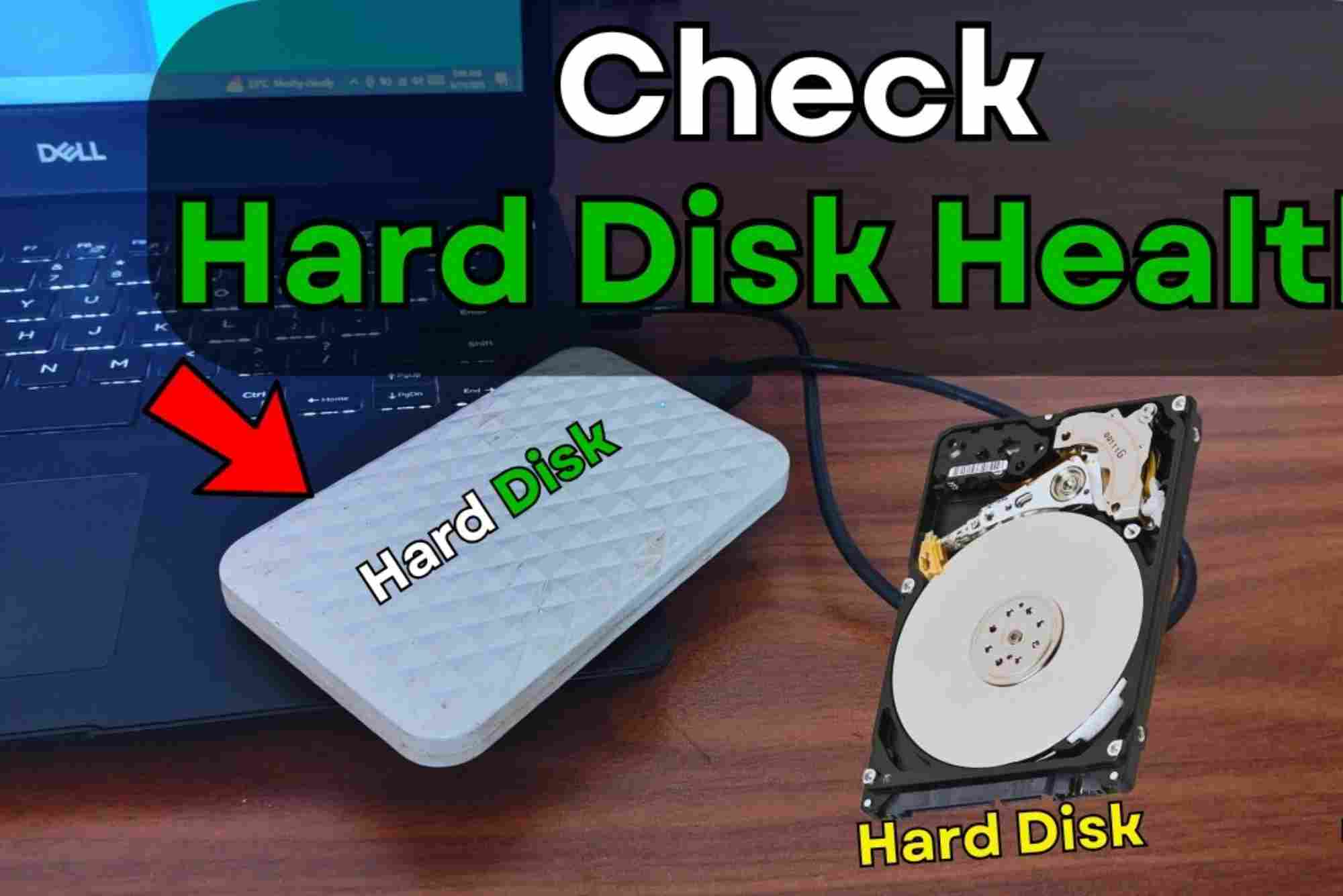
Maintaining your computer’s storage health is vital to ensure smooth performance and avoid data loss. If you’re using Windows 10, knowing how to check disk health Windows 10 provides peace of mind and prevents unexpected failures. This guide explains everything from built-in tools to advanced methods to help you monitor and maintain your hard drive or SSD.
Why You Should Check Disk Health on Windows 10
Your hard drive or SSD is where all your data resides. Over time, disks can develop bad sectors, slow down, or even fail completely. Checking disk health regularly helps identify potential problems early. This prevents data loss and can save costly repairs or replacements.
Windows 10 users often overlook this crucial step. However, regular disk health checks ensure your system runs efficiently. Whether you are using a traditional HDD or a modern SSD, understanding your disk’s condition is important.
How to Check Disk Health Windows 10 Using Built-In Tools
Windows 10 offers several tools to assess your disk’s condition. These tools can detect errors, bad sectors, and provide basic health information.
Using CHKDSK to Scan and Fix Disk Errors
CHKDSK (Check Disk) is a powerful command-line tool built into Windows 10. It scans your hard drive for errors and attempts to fix them automatically.
To use CHKDSK:

- Open Command Prompt as administrator by typing
cmdin the Start menu, right-clicking, and selecting “Run as administrator.” - Type
chkdsk C: /f /rand press Enter. Replace “C:” with the letter of the drive you want to check. - If the drive is in use, Windows will ask to schedule the scan on the next reboot. Confirm by typing
Y.
CHKDSK will scan the drive, locate bad sectors, and recover readable data. This process can take time but is essential for maintaining disk health.
Using Windows PowerShell for Disk Health Status
PowerShell offers an easy way to check your disk’s SMART status. SMART (Self-Monitoring, Analysis, and Reporting Technology) monitors the health of your drives and alerts you about impending failures.
To check SMART status in PowerShell:
- Press Windows + X and select Windows PowerShell (Admin).
- Enter the command:
Get-PhysicalDisk | Format-Table FriendlyName, HealthStatus
This command lists all physical disks and their health status as “Healthy” or “Unhealthy.” It’s a quick method to verify if your disk is functioning properly.
Using the Windows 10 “Optimize Drives” Tool
While mainly designed for disk defragmentation, the Optimize Drives tool also provides some insight into your disk’s health. It shows the current status and last run time.
To open Optimize Drives:
- Search for “Defragment and Optimize Drives” in the Start menu.
- Select your disk and click “Analyze.”
- The tool will give you a fragmentation report, which indirectly indicates disk performance.
Although not a health diagnostic tool, regular optimization improves overall disk efficiency.
Third-Party Software to Check Disk Health in Windows 10
Sometimes built-in tools are not enough for advanced diagnostics. Third-party applications provide detailed reports, real-time monitoring, and alerts.
CrystalDiskInfo
CrystalDiskInfo is one of the most popular free utilities for monitoring disk health. It displays detailed SMART data, temperature, and warnings.
Users can easily see if their disk is healthy or if any parameters indicate issues. The interface is user-friendly, making it accessible even for beginners.
HDDScan
HDDScan offers comprehensive scanning, including surface tests and SMART attribute analysis. It’s suitable for both HDDs and SSDs.
The program can detect bad sectors and predict possible disk failures. It’s a great option for users who want detailed reports and customizable scans.
Other Recommended Tools
Other reliable tools include HD Tune, Speccy, and Hard Disk Sentinel. These tools vary in features but generally provide in-depth disk health information.
Always download software from official sites to avoid malware and ensure you get the latest version.
Signs Your Disk Might Be Failing
Knowing the symptoms of a failing disk helps prompt early checks and backups. Common signs include:
- Slow performance and frequent freezes
- Strange noises like clicking or grinding
- Corrupted files or frequent crashes
- Disk not recognized by Windows
If you notice any of these, run disk health checks immediately to avoid data loss.
How to Improve Disk Health and Prevent Failures
Regular maintenance can extend your disk’s life. Besides checking health, consider these tips:
- Keep your system updated
- Avoid physical shocks and extreme temperatures
- Defragment HDDs periodically
- Use reliable antivirus software to prevent malware damage
- Backup important data regularly
Following these habits helps keep your Windows 10 disk healthy.
Frequently Asked Questions (FAQs)
How often should I check disk health on Windows 10?
It’s recommended to check your disk health at least once every few months or if you notice system slowdowns or errors.
Can Windows 10 automatically repair disk errors?
Yes, tools like CHKDSK can detect and repair many disk errors automatically when run with appropriate parameters.
What is SMART, and how reliable is it?
SMART is a monitoring technology embedded in most modern drives that tracks health indicators. While helpful, it’s not 100% foolproof but provides a good early warning system.
Will checking disk health delete my data?
No, disk health checks do not delete data. However, if errors are found, repair processes may move or mark bad sectors. It’s best to backup data beforehand.
Can I check SSD health the same way as HDD?
Yes, most tools and Windows commands support both SSDs and HDDs, though SSDs don’t require defragmentation.
Regularly performing a check disk health Windows 10 routine ensures your computer’s storage stays reliable. Using both built-in tools and trusted third-party software allows you to detect problems early and avoid costly data loss. Take control of your disk’s health today by running these simple checks and keeping your system optimized.
If you want a hassle-free way to monitor and maintain your disk health, consider scheduling regular diagnostics. For more tips on Windows 10 maintenance and troubleshooting, explore our other guides.