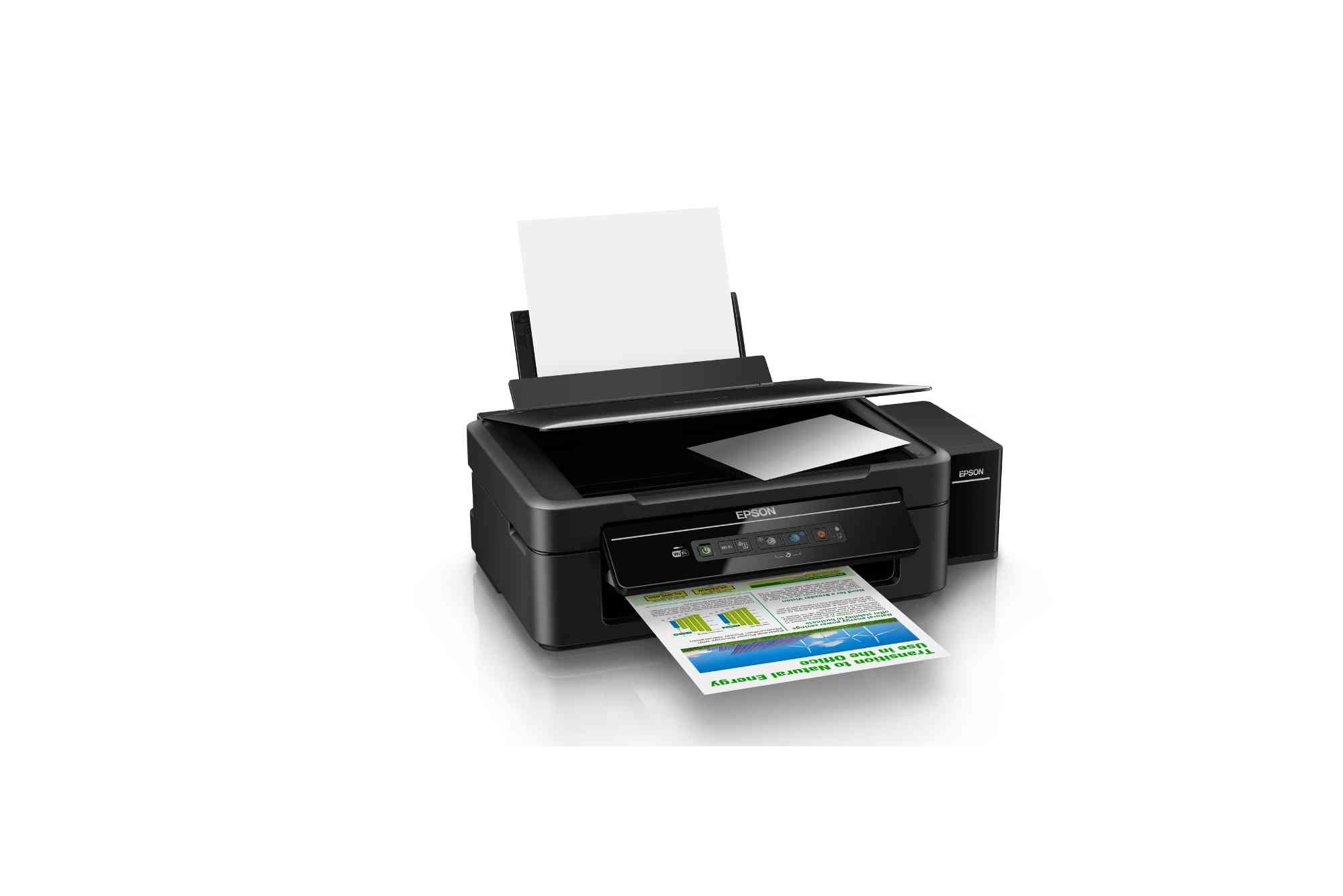
Epson L365 Scanner Software: Installation and Download Guide
The Epson L365 scanner software is essential for anyone using the Epson L365 all-in-one printer. This multifunction printer is known for its high-quality printing, scanning, and copying capabilities. However, to fully utilize its scanning functions, you need the correct driver and software installed on your computer. Without the proper software, your system may fail to detect the scanner or perform poorly when converting documents and photos into digital formats. This guide will walk you through everything you need to know about downloading, installing, and using the Epson L365 scanner software efficiently.
What Is Epson L365 Scanner Software?
The Epson L365 scanner software is a set of programs and drivers designed to help your computer communicate with the Epson L365 printer and scanner. It includes the Epson Scan Utility, which allows you to adjust scanning settings, select file formats, and manage scanned images directly from your desktop. This software ensures that the scanner works correctly on both Windows and macOS operating systems. It helps users scan documents, photos, and images with clarity and precision while offering customization options such as resolution adjustment, color correction, and file compression.
Why You Need Epson L365 Scanner Software
Even though the Epson L365 can print via USB or Wi-Fi, its scanning functions rely heavily on the scanner software. Installing the proper driver ensures smooth connectivity, faster scan speeds, and compatibility with your computer’s operating system. Many users experience scanning problems like missing drivers, connection errors, or poor image quality simply because they haven’t installed the correct version of the software. The Epson L365 scanner software fixes these issues by providing the necessary tools and settings for optimal performance.
How to Download Epson L365 Scanner Software
Downloading the Epson L365 scanner software is a straightforward process. You can obtain it directly from the official Epson website. To do this, open your preferred browser and go to the Epson Support page. Type “Epson L365” in the search bar and select your printer model. Once you’re on the product page, choose your operating system, such as Windows 10, Windows 11, or macOS. Then, locate the “Drivers and Utilities Combo Package” or “Epson Scan” option and click on the Download button. The setup file will begin downloading to your computer. Always make sure you’re downloading from the official Epson site to avoid malware or outdated drivers.
Steps to Install Epson L365 Scanner Software
Once you’ve downloaded the software, the installation process is simple. Locate the downloaded file, usually found in your computer’s “Downloads” folder. Double-click the installer file to start the setup. A window will appear asking for permission to make changes to your system—select “Yes.” The installation wizard will open, guiding you through each step. Follow the on-screen instructions, agree to the license terms, and select your preferred installation options. When the installation completes, restart your computer to ensure the new drivers are fully activated. After restarting, your system should recognize the Epson L365 scanner automatically.
Setting Up the Scanner for the First Time
After installation, you need to connect your Epson L365 printer to your computer. You can do this using a USB cable or a wireless connection. For USB setup, simply plug the cable into your computer and the printer. The computer will detect the scanner instantly. For wireless setup, press the Wi-Fi button on your printer until the light starts blinking, then use the Epson Connect utility to link it to your Wi-Fi network. Once connected, open the Epson Scan software to confirm your scanner is detected. You can then adjust settings and start scanning.

How to Use Epson L365 Scanner Software
Using the Epson L365 scanner software is simple, even for beginners. Open the Epson Scan application from your desktop or Start menu. Choose your scan mode—Home, Office, or Professional—depending on your needs. Place your document or photo on the scanner glass. Adjust settings such as resolution, color mode, and file format. Higher resolution is ideal for photos, while lower settings are better for text documents. Once ready, click the Scan button. You can preview the scanned image, crop it, and make corrections before saving it as a PDF, JPEG, or TIFF file.
Troubleshooting Common Issues
Sometimes, even after installation, the scanner may not work properly. Common issues include the scanner not being detected or showing communication errors. First, ensure the USB or Wi-Fi connection is stable. If the problem persists, reinstall the driver. Visit the Epson website again, download the latest version of the software, and follow the installation steps. Another common issue is poor scan quality. In such cases, clean the scanner glass, adjust resolution settings, or check for driver updates. Epson also provides diagnostic tools within its software to automatically identify and fix scanning problems.
Updating Epson L365 Scanner Software
Keeping your Epson L365 scanner software updated ensures compatibility with your computer’s latest system updates and prevents performance issues. Epson regularly releases updates to enhance speed, security, and functionality. To update, visit the official Epson website, go to your printer’s page, and check for new versions of the driver or software package. You can also use the Epson Software Updater tool, which automatically detects outdated drivers and installs the latest updates for you.
Features of Epson L365 Scanner Software
The Epson L365 scanner software offers a variety of features designed to enhance productivity. One of its key functions is multi-page PDF scanning, allowing users to combine several pages into a single document. It also includes image correction options like brightness, contrast, and color adjustment to ensure professional-quality scans. The OCR (Optical Character Recognition) feature is another useful tool—it converts scanned documents into editable text files. The software also supports automatic file naming and saving preferences, making it easy to organize your scanned files efficiently.
Compatibility with Operating Systems
Epson L365 scanner software works seamlessly with major operating systems, including Windows 7, 8, 10, 11, and macOS. It is also compatible with certain Linux distributions using third-party drivers. Before downloading, always check your system specifications on the Epson website to ensure compatibility. Some older operating systems may require legacy versions of the software, which can still be found on Epson’s support archive.
Tips for Optimal Scanning Performance
To achieve the best scanning results, keep your scanner glass clean and free of dust. Always place documents properly on the scanner bed to avoid shadows or misalignment. For photos, use high-resolution settings to capture fine details. Adjust brightness and contrast if images appear too dark or light. If you’re scanning large volumes of documents, use the batch scanning feature to save time. Regularly update your software and drivers to ensure continued efficiency.
Safety and Maintenance Recommendations
Proper maintenance extends your scanner’s lifespan. Avoid exposing it to direct sunlight or moisture. Turn off the printer when not in use for long periods. Clean the scanner glass gently using a microfiber cloth to prevent scratches. Use only genuine Epson ink and software to ensure consistent performance. Avoid installing unofficial drivers that could harm your computer or void your warranty.
Benefits of Using Official Epson Software
Using official Epson software provides several advantages over third-party alternatives. It ensures full compatibility with your device and operating system. The software includes security patches, bug fixes, and performance enhancements from Epson engineers. Moreover, you get access to exclusive tools like Epson Connect, which lets you scan and print remotely. Official software also provides direct technical support from Epson if issues arise.
The Epson L365 scanner software is a vital component for anyone who owns this all-in-one printer. It enables seamless communication between your device and computer, ensuring that every document or image you scan is of professional quality. From simple document scanning to advanced image editing, this software covers every aspect of productivity. By following the download and installation steps outlined in this guide, you can enjoy error-free scanning and smoother performance. Regular updates and proper maintenance will keep your Epson L365 running efficiently for years. If you haven’t yet installed the Epson L365 scanner software, visit the official Epson Support website today and download it. Keep your printer updated for the b
Frequently Asked Questions
How do I install the Epson L365 scanner software on Windows 10?
Download the software from Epson’s official website, run the installer, and follow on-screen instructions. Restart your computer after installation for best results.
Why is my Epson L365 scanner not working after installation?
Check your USB or Wi-Fi connection and ensure you installed the correct driver version. If issues persist, reinstall the software or update it from the Epson website.
Can I use Epson L365 scanner software on Mac?
Yes, Epson provides macOS-compatible versions of the scanner software. Visit the support page, select macOS, and download the corresponding driver.
Where can I find Epson L365 scanner software for free?
You can download it for free from the official Epson Support website. Avoid third-party download sites to protect your device from malware.
Does Epson L365 support wireless scanning?
Yes, the Epson L365 supports wireless scanning once connected to your Wi-Fi network using the Epson Connect setup.